A step-by-step guide to installing and running Google Ads Editor with Bottles and Wine
How to Run Google Ads Editor on Linux using Bottles
For PPC specialists, media buyers, and agency professionals working on a Linux desktop, Google Ads Editor has long been a missing piece. Google officially provides desktop installers only for Windows and macOS, leaving Linux users either stuck with the slower browser interface or forced to maintain a resource-heavy Windows virtual machine just for bulk campaign edits.
Fortunately, there is a better way. Using Bottles - a modern graphical tool designed to run Windows software and games on Linux via Wine prefixes - you can run Google Ads Editor natively, reliably, and with full hardware acceleration.
In this guide, we will walk you through setting up an isolated Bottle prefix, configuring the exact .NET and runtime dependencies required, fixing high-DPI scaling, and troubleshooting account login issues.
Prerequisites: Install Bottles via Flatpak
To ensure clean dependency management and avoid conflicts with host system libraries, install the Flatpak release of Bottles from Flathub. It is the officially supported package and includes sandboxed environments optimized for Wine.
If you don’t already have Bottles installed, run:
flatpak install flathub com.usebottles.bottlesAlternatively, you can install it directly from your Linux distribution’s software center (such as GNOME Software or KDE Discover).
Step 1: Create a Dedicated Bottle
Once Bottles is open, create a clean environment dedicated to Google Ads Editor:
- Click the + (plus) button in the top bar to create a new bottle.
- Name:
Google Ads Editor - Environment: Select Application (this sets up a prefix tailored for desktop software rather than games).
- Runner: Leave it set to the default Soda runner.
- Click Create and allow Bottles to finish initializing the prefix.
Step 2: Install Critical Windows Dependencies
Google Ads Editor relies on specific Windows runtimes and legacy UI components. Installing these in the correct sequence within the bottle is essential to avoid installation errors or startup crashes.
Open your newly created bottle, navigate to the Dependencies tab, and install the following packages one by one:
dotnet48: Core Microsoft .NET Framework 4.8. (Note: This can take several minutes and may appear frozen during configuration - allow it to run to completion).dotnet: Select the latest version listed in your dependencies manager (e.g.,dotnet481).vcredist2022: Visual C++ 2015–2022 Redistributable runtime.gdiplus: Microsoft GDI+ library (required for rendering custom UI elements).webview2: Microsoft Edge WebView2 runtime (essential for modern web-based OAuth authentication).
Warning
Important: Avoid Modern .NET Desktop Runtimes
Google Ads Editor is built on top of the legacy .NET Framework (4.x series), not the modern cross-platform .NET Desktop Runtime (6/8/9/10).
Do not install dotnetdesktop10 or other modern .NET runtimes in this bottle. Mixing legacy .NET Framework with modern .NET Desktop runtimes inside Wine prefixes frequently corrupts runtime bindings and causes Google Ads Editor to crash on launch.
Step 3: Configure Windows Version & High-DPI Scaling
Before installing the software, tweak two quick settings in your bottle’s configuration:
Set Windows Version to 11
Under your bottle’s settings, scroll to the Windows Version section and set it to Windows 11. While older guides suggested Windows 10, Windows 11 provides better compatibility with current Google Ads Editor releases and avoids outdated TLS/certificate warnings.
Fix High-DPI Scaling (Optional but Recommended)
On 1440p or 4K monitors, Windows apps under Wine can render with tiny, unreadable fonts and UI elements.
In your bottle’s settings, open the Display section and adjust the DPI scale:
- 1440p displays: Set DPI to 144
- 4K displays: Set DPI to 192
Step 4: Download and Install Google Ads Editor (MSI)
The standard web installer (GoogleAdsEditorSetup.exe) available on Google’s website is a lightweight bootstrapper that attempts to stream installation files dynamically. This dynamic download often fails inside Wine.
Instead, download the full, direct MSI installer:
wget https://dl.google.com/adwords_editor/google_ads_editor.msiRun the Installer
- Inside your bottle in Bottles, click Run Executable.
- Select the
google_ads_editor.msifile you just downloaded. - Follow the standard installation wizard prompts until complete.
- Once finished, you can safely delete the downloaded
.msifile to save disk space.
Step 5: Launch Google Ads Editor & Sign In
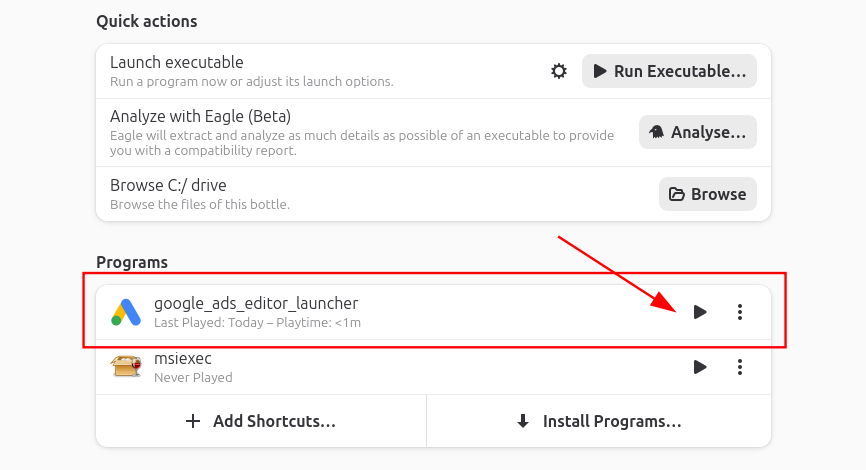
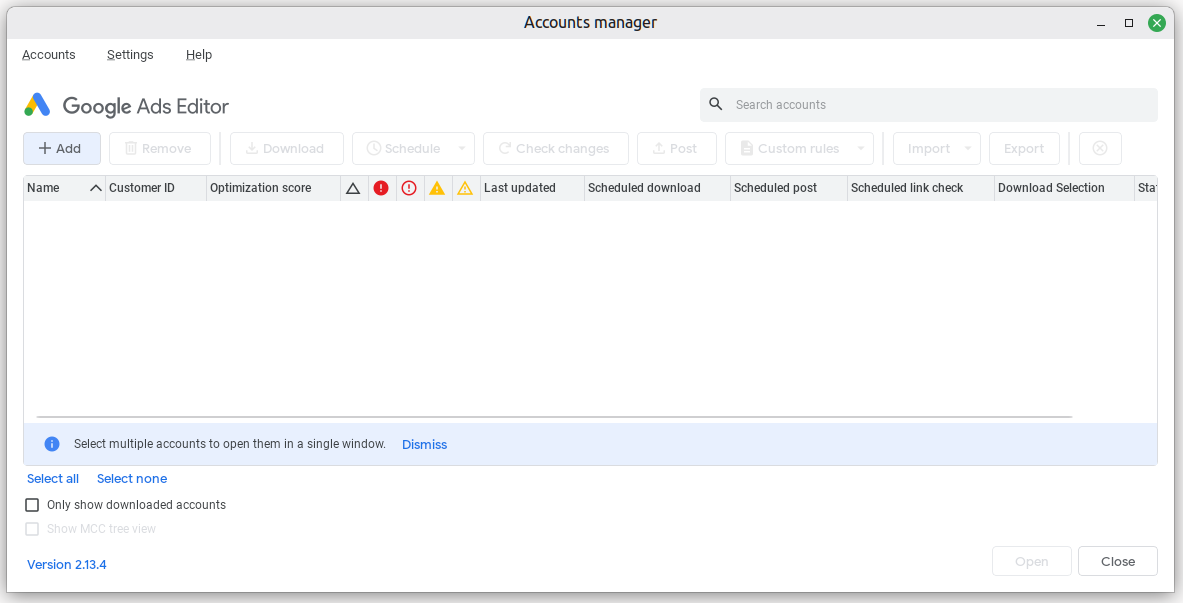
If Bottles restarts or closes after installation, open it and locate the Programs section. Click the Play button next to google_ads_editor_launcher (or Google Ads Editor) to launch the application.
Tip
OAuth Authentication Tip:
When you first launch Google Ads Editor and click Sign in, the application may default to an embedded in-app browser. If the embedded window renders as a blank white page, choose “Open browser to sign in” instead.
This will automatically open the Google OAuth authorization prompt in your native Linux browser (Chrome, Firefox, Brave, etc.). Once you approve access, the browser will seamlessly redirect the token back to the local editor.
Conclusion
Running Google Ads Editor on Linux no longer requires spinning up a slow, memory-hogging virtual machine or dual-booting Windows. Thanks to Bottles and modern Wine compatibility layers, you can manage bulk PPC campaigns, create ad groups, import CSVs, and adjust bidding strategies with full native desktop performance.
Info
Compatibility Note: This configuration is verified working as of October 2026. If Google updates the underlying runtime requirements or you run into any edge-case setup issues, feel free to reach out or drop a note!
Need help scaling your Google Ads?
From account architectures to custom offline conversion pipelines and automation, we help brands grow profitably. Let's talk.
Book a Discovery Call